
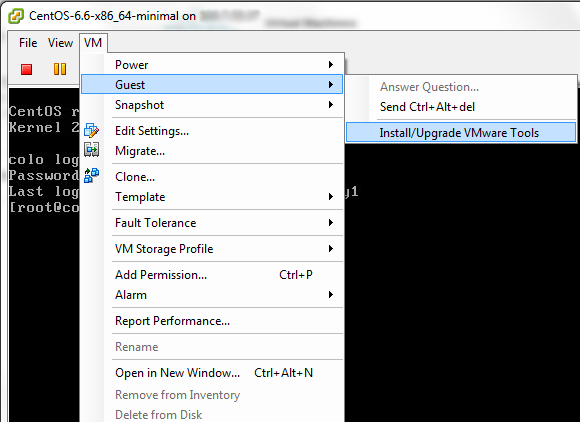
Install VMware Tools on Debian
We must log in with root user. It is better if we start with update all the software in system first then reboot one time.
apt-get update && apt-get dist-upgrade
shutdown -r now
Install compiler and Linux Header with command
apt-get update && apt-get install build-essential linux-headers-$(uname -r) libglib2.0-0
Mount VMware Tools disc and extract file
mount /dev/cdrom /mnt
tar xvfz /mnt/VMwareTools-*.tar.gz -C /tmp/
Start installing VMware Tools with command
perl /tmp/vmware-tools-distrib/vmware-install.pl
Then press Enter to all the questions to use all default answer. Then reboot again and it will be done.
shutdown -r now
Install VMware Tools on Ubuntu
We must log in with user that has sudo privilege. It is better if we start with update all the software in system first then reboot one time.
sudo apt-get update && sudo apt-get dist-upgrade
sudo shutdown -r now
Install compiler and Linux Header with command
sudo apt-get update && sudo apt-get install build-essential linux-headers-$(uname -r)
Mount VMware Tools disc and extract file
sudo mount /dev/cdrom /mnt
sudo tar xvfz /mnt/VMwareTools-*.tar.gz -C /tmp/
Start installing VMware Tools with command
sudo perl /tmp/vmware-tools-distrib/vmware-install.pl
Then press Enter to all the questions to use all default answer. Then reboot again and it will be done.
sudo shutdown -r now
Install VMware Tools on CentOS
We must log in with root user. It is better if we start with update all the software in system first then reboot one time.
yum update
shutdown -r now
Install compiler and Linux Header with command
yum install gcc perl
Mount VMware Tools disc and extract file
mount /dev/cdrom /mnt
tar xvfz /mnt/VMwareTools-*.tar.gz -C /tmp/
Start installing VMware Tools with command
perl /tmp/vmware-tools-distrib/vmware-install.pl
Then press Enter to all the questions to use all default answer. Then reboot again and it will be done.
shutdown -r now
ที่มา : http://www.wingfoss.com/content/how-to-install-vmware-tools-on-debian-ubuntu-centos